We secure your wallet, but don't control or have access to your private keys or secret phrases - only you do.
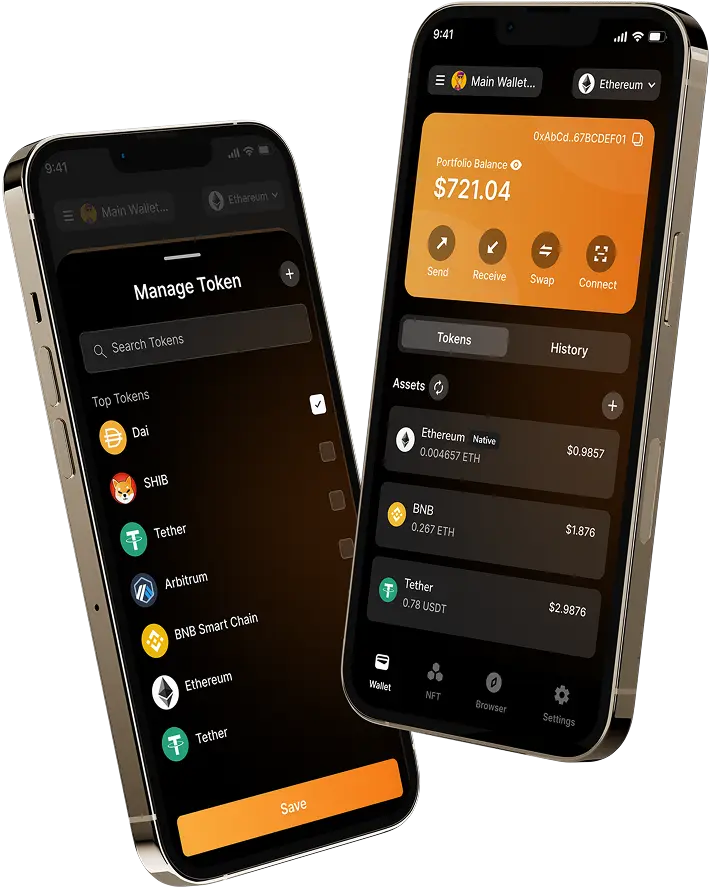
CoinGuardTM Wallet provides a secure key vault, effortless login, and dedicated token storage. It equips you with all the necessary tools to manage and protect your digital assets, as well as view your NFTs.
Unlock the power of CoinGuardTM SDK for seamless integration in your Games and Applications.
Multi-Wallet and Multi-Account Creation Support
Create multiple wallet accounts for different Web3 sites to isolate risks.
It allows you to send, receive, spend & exchange your digital assets.
Swap crypto directly from your CoinGuardTM mobile app and browser extensions we enable, seamless and free
Clear and easy to find Information about your account transactions is available in your "Transaction History" section
Securely log into Decentralised Applications and websites to trade assets, lend, borrow, play games, publish content, buy rare digital art, and much more.
Transactions are end-to-end encrypted and fully on-chain with 2FA (Two factor Authentication) and Biometrics built in
Generate passwords and keys on your phone and keep your accounts secure that prevent unauthorized access to your assets
Fully secure with wallet keys double encrypted and fully self managed on your own mobile device
Discover new and innovative crypto assets with over 200 spot trading pairs and 25 margin.
You can import the wallet using two following methods
1. Using a Seed Phrase (12, 24 words)
1. Install the CoinGuardTM wallet app
2. Open the app and select "Import Wallet" or "Restore Wallet."
3. Enter your 12 or 24-word seed phrase in the correct order.
4. Set a new password (if required).
5. Your wallet will be restored, and you should see your assets.
2. Using a Private Key
1. Open your CoinGuardTM wallet app.
2. Go to the "Import Wallet" or "Restore Wallet" section.
3. Select "Import using Private Key."
4. Enter your private key (never share this!).
5. Your wallet will be restored.
Whenever you open the CoinGuardTM wallet, a backup reminder will appear if you haven’t backed up your wallet yet. By clicking the Backup button, you will be directed to the wallet backup section, where you will see step-by-step instructions. The wallet will then display your recovery phrases, which you must confirm. Once successfully verified, your wallet backup will be completed. You can also take the backup of the wallet by going into the settings of the CoinGuardTM wallet where you can see the option of Backup
A Monitor Wallet is a cryptocurrency wallet that allows you to monitor balances and transactions without having access to spend the funds. It is mainly used for tracking the wallet and security purposes.
Your funds are not on the app. They are on the blockchain network itself. The app just allows you to access an address and make transactions out of it by using your Recovery Phrase
To use WalletConnect within CoinGuardTM wallet, follow these steps:
1. Open CoinGuardTM Wallet and go to the WalletConnect Section
2. Scan the QR Code or Use a Deep Link – On the website or dApp you want to connect with (e.g., Uniswap, OpenSea, PancakeSwap), select “Connect Wallet” > “WalletConnect”, and a QR code will appear.
3. Approve the Connection – Scan the QR code with your wallet app or click the provided deep link, then approve the connection request.
4. Interact with the dApp – Once connected, you can confirm transactions, sign messages, or interact with smart contracts directly from your wallet.
5. Disconnect When Done – For security, always disconnect WalletConnect after use by selecting “Disconnect” in your wallet or on the dApp.